![logo.png]](https://support.talkatoo.com/hs-fs/hubfs/Talkatoo%20Marketing%20Assests/Logo/logo.png?height=32&name=logo.png)
The Talkatoo Web Portal allows you to manage all aspects of your account, including subscription and users. It is available at https://app.talkatoo.com
You can also access it by clicking Login on Talkatoo.com, or from within the Talkatoo desktop app by clicking the 3 dots > Settings > Update Profile.
You will also use the portal to manage and access your notes, customize the SOAP template, and create custom templates.
Admin Dashboard
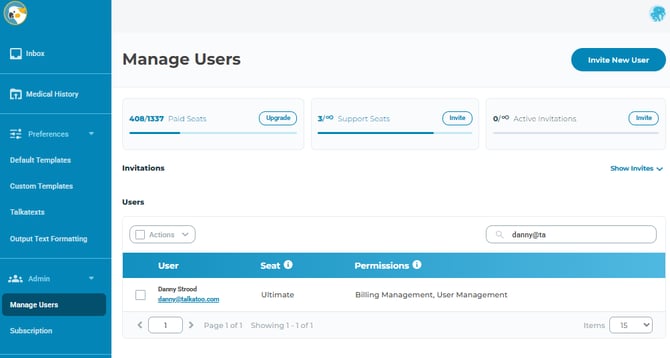
The Admin Dashboard page lets you see the details of your plan, next payment date and the amount you will be charged, as well as the number of active, invited and available users.
Managing Users
Managing users in Talkatoo is now much more robust and flexible. When you create a user, you will choose the Seat type, and any additional permissions.
Adding new users
To invite a new user:
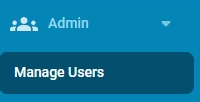
- Click Manage Users on the lower left.
- Click Invite New User (upper right)
- Enter their email address
- Choose which Seat type they should have
- Choose any additional permissions they should have
- Click Invite

For more details about the different user types and permissions, and which to choose, please refer to this article: Seats, User Types and Permissions
All invited users will receive an email invitation to create their account, and download Talkatoo.
If the user invitee has ever used Talkatoo before with this address, they will see a message that the account exists. If their account is expired, they can simply choose Accept Invitation. If they are the main account holder of another active, paid subscription, they will need to contact our team to end that subscription first.
If they do not remember their password, they can reset it from the login page, or you can send them a password reset email from the Users page, after they have accepted the invitation.
Note that if you signed up with an account that will not be used for dictation, you can also remove the dictation rights for your account, allowing you to add another dictation user.
If you purchased a single user plan, or already have all of your users allotted, you must either do this before inviting the user, or invite the user without dictation permissions and then adjust them.
Editing users
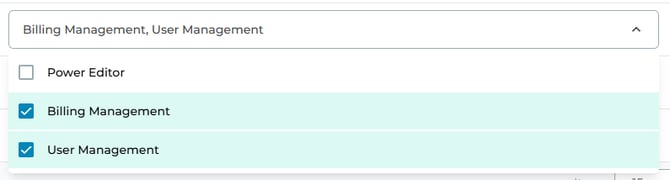
To edit permissions for a user that already exists, you can click on the permissions line and change the permissions right in the dropdown.
If a user needs to change their name, they can do so by logging into the portal themselves. Email addresses are not editable at this time. You can either remove and re-invite the user, or you can contact us to edit the email address.
You are only able to grant permissions that your account has. For example, to grant billing management permissions, your account must possess those permissions.
Removing a user
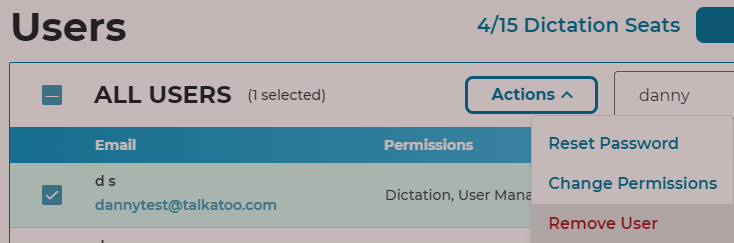
If a user has left, you can delete their account from within the User page by checking the box next to their name, then clicking the Actions > Remove User. This will free up a slot to be able to add a new user now, or in the future. Their account, settings and password will be available on our backend to be reused on a different account or re-added later for a limited time.
Managing your subscription
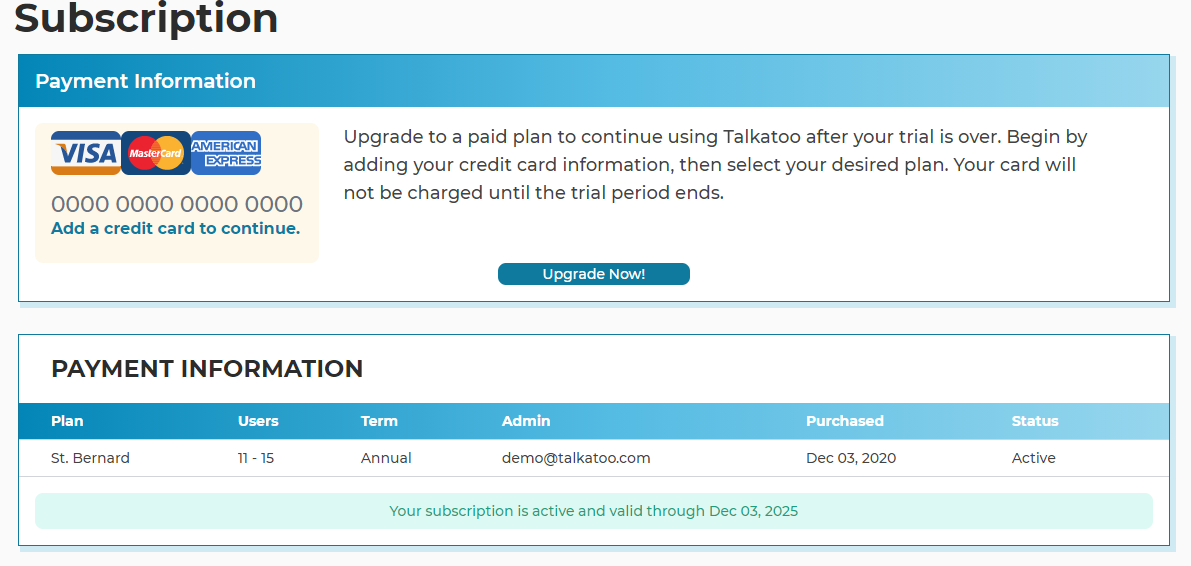
If you are already a customer and need more users than your current plan allows, you can upgrade your plan from within the portal. At this time, you can only upgrade your plan on the portal.
We are working on implementing the ability to downgrade or end your subscription in the portal, but in the meantime, please fill out this form and we will get back to you shortly.
Invoices
You are able to view and download PDF versions of your previous invoices by going to the Billing History tab.
If you discover any issues or errors in the administration portal, we would be grateful if you let us know by sending an email to support@talkatoo.com