![logo.png]](https://support.talkatoo.com/hs-fs/hubfs/Talkatoo%20Marketing%20Assests/Logo/logo.png?height=32&name=logo.png)
Record with your Custom Template
Our default templates are quite customizable, but we know they can't handle every scenario. Creating Custom Templates allows you to have your notes formatted in any way you choose.
Create as many as you want, and choose which one to use when starting a note from the desktop or mobile apps. Ultimately, creating custom templates allows you to tell Talkatoo exactly how you'd like it to generate your note.
Creating a Custom Template
To get started, log in to the Talkatoo Web App and click the settings gear icon on the top right. Then select Custom Templates on the left.
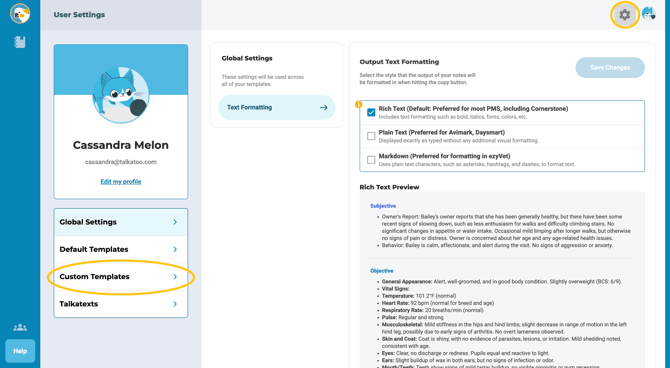
As an example, let's create a Custom Template for a more detailed Dental SOAP note that adds several new sections to our default SOAP Template.
Add a title: This will be used to select this template from the dropdown on your phone so ensure it's different enough from any others you create.
Select how you'd like to begin:
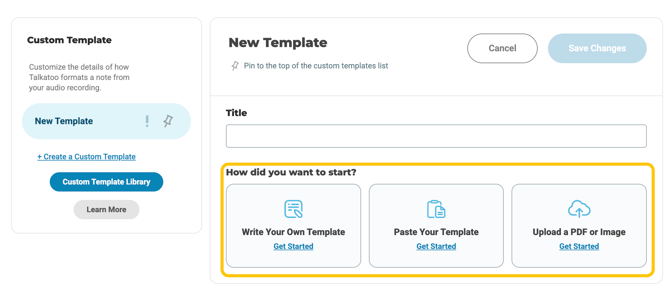
1. Write your own Template: Write your desired template from scratch to tell Talkatoo’s AI what kind of note to create. Use the options at the top of the text field to customize the formatting of the note.
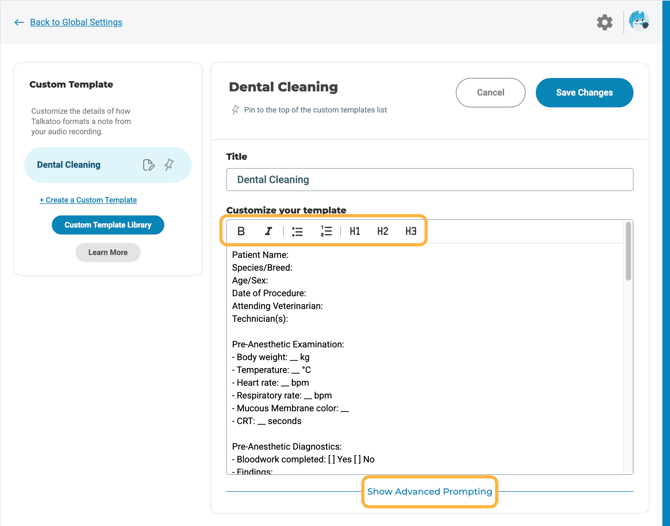
Click Show Advanced Prompting to control the finer details of your note.
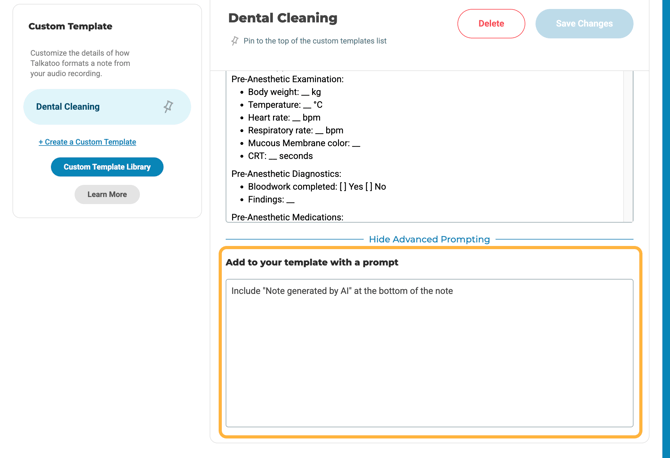
Here is where you can add more detailed directions. In the example above, we've written an instruction to have the final result include a message to notify readers that the note was generated by AI.
2. Paste your own Template: Copy a pre-existing template from your records into the system. You can paste a version of your preferred template that is already pre-filled too! The system will process the information and remove the patient details, leaving only the blank template for you to customize.
3. Upload a PDF or Image: You can also upload other text formats like DOC, RTF or TXT as well as image formats like PNG and JPG. Once uploaded, Talkatoo's AI will process the file and create a customizable template from it for you to edit as you see fit.
Record a Note with your Custom Template
Your Custom Template is now accessible through the template selector via Notes.
If you have just created the template, and don't yet see the new entry, you can either quit and relaunch the app, or give it a couple of minutes to sync.
When you go to the Notes section, you have a dropdown where you can choose between the built-in templates, and your Custom Notes.
.gif?width=219&height=474&name=Untitled%20design%20(2).gif)
Select the template you created, and then record your notes about your visit, or record the entire appointment itself.
Retrieve your Custom Template
Your Custom Template is retrievable through your note inbox - the same way the default templates are retrieved!
The Inbox is accessible through the Web app, the Desktop app, or the Mobile app. Likewise, you will also have access to the transcript, and the original audio if you need it for reference.
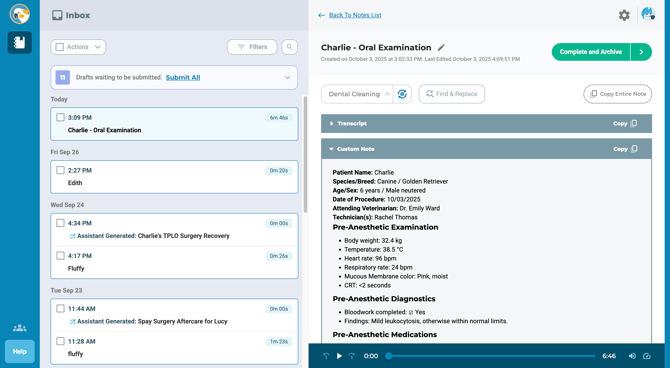
The generated note will use the template, settings and advanced prompts in your Custom Template. You will likely need to refine your templates as you find what works best and what doesn't, so you can always go back and edit them.
As always, changes made to a template will only affect new notes submitted after the changes have been made. That means that if you find something you want to change in a recorded note, you will have to manually make the fixes in that particular note.
Sharing your Custom Template
Once you've perfected your template, you may want to share it with your colleagues to use. Currently we do not have a built-in method to do so, however it's fairly simple to do.
All you need to do is copy the text from the template boxes where you created them, and have the other user create a new note and paste it in the corresponding box.
There are a few ways this can be done.
- Sending the text by email. Ensure the sections are marked and spaced so as to be clear which is which, and the same goes for if multiple notes are included.
- Sign in to both accounts on the same computer using 2 different browsers (e.g. Chrome and Edge). Then copy one box at a time into the corresponding field.
- A shared document, such as Google Doc or Microsoft Word.
We are working on an easier, integrated method to do this but in the meantime, this is how you can share your templates.
As this is still a relatively new feature of Talkatoo, and is using Artificial Intelligence, be sure to proofread all output, and please let us know if you run into any issues or bugs by emailing us at support@talkatoo.com.