![logo.png]](https://support.talkatoo.com/hs-fs/hubfs/Talkatoo%20Marketing%20Assests/Logo/logo.png?height=32&name=logo.png)
What are Macros?
How to Create a Macro
How to Use your Macro
Tips and Limitations
What are Macros?
Macros, formerly known as Talkatexts, allow you to insert pre-written text while you are dictating. If you have something you often say, then Macros are here to make it so you don't have to speak the whole sentence/paragraph anymore. Once you've created your Macro once, you can speak a short voice command to enter that same text as many times as you want, while using Direct Dictation!
Note that these are not able to be used while recording Notes, only for direct dictation.
How to Create a Macro
Sign into our web app here and click on Macros on the left to create a new one, or edit an existing Macro. 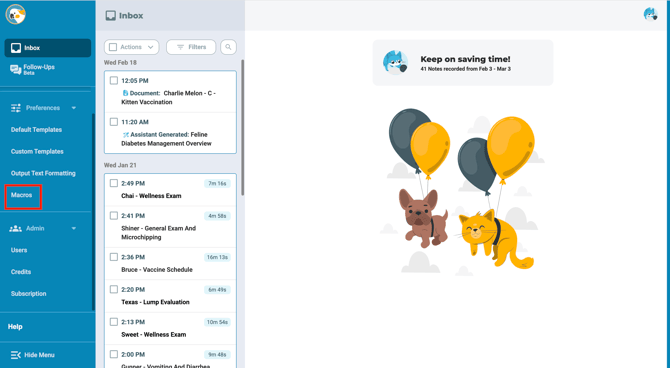
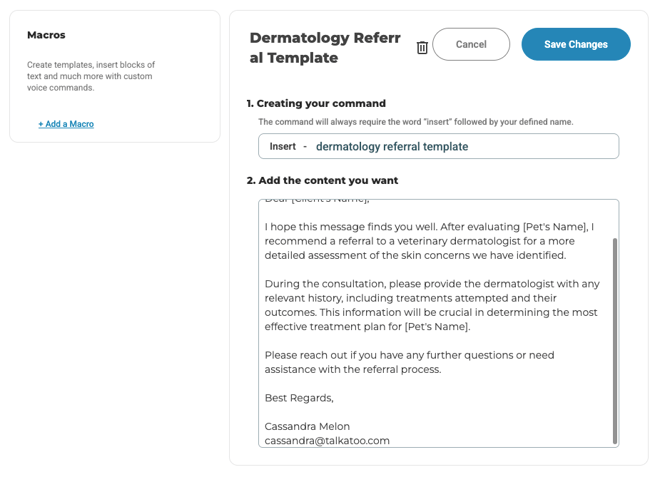
1. Give your Macro a good name that you'll remember. This is the verbal command you will use to trigger the Macro.
2. The large box at the bottom is where you enter what will be written upon hearing your command. You can type, dictate, or copy and paste into the box.
If right clicking does not work, you can press CTRL+V from Windows, or Command+V from a Mac.
See current limitations below about pasting formatted text.
When you are happy with it, click Save.You can always come back to edit it.
How to Use your Macro
Once you've saved your text, go to any text field, start your dictation like normal, and say "Insert" and then the name of your command. eg. "Insert dermatology referral template" .
Note that Talkatoo will only detect your Macro when the phrase is said on it's own, and not in the middle of another dictation. You would need to either say the command as the first words of a new dictation, or wait at least 3 seconds before and after saying any other words.
eg.
WOULD NOT WORK: *Start Dictation* "I said insert signature and it pasted my signature".
WOULD WORK: *Start Dictation* "insert signature".
WOULD NOT WORK: *Start Dictation* "insert signature goodbye".
WOULD WORK: *Start Dictation* "I am about to test my new voice command." *3 second pause* "insert signature". *3 second pause* "Hey, it worked"
See this quick video if it's still not clear:
Tips and Limitations
Synced across multiple computers
Any Macros you add on one computer will be saved and available on the same account on any computer.
Length
There is no meaningful limit to how long the text you insert can be. That being said, don't try to insert a chapter from a book for example, as your computer will struggle to keep up with that, and may cause it to crash.
Formatting
Emphasis Text
Currently Macros do not support any special formatting, such as bold, italics, underlined, sub- or super-script, numbered or bulleted lists, or any other rich text features you may be used to. You can paste text with formatting into the box, but it will be stripped out and appear only as regular text. This also includes text that is centered or right-aligned.
One alternative for some formatting such as bold, underline or italics may be to put the text in all caps, or surround it with characters such as stars (*TEXT*) or underscores (_TEXT_) instead so it stands out.
Lists
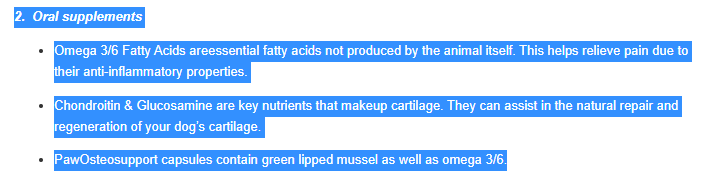 Notice how the bullets themselves are not selected.
This means they will not be copied.
Lists will often not copy as expected, because the numbers or bullets themselves are not copied, instead only being displayed in the original program itself.
Instead of bullets, you might add hyphens. For numbered lists, you can still add the numbers manually.
Aligning Text
For center or right-aligned text, you can move the text by adding as many spaces as you like. Note that the Tab button will not work here.
MobileMic
If you use your iPhone as a microphone, you can still use Macros. At this time you are not able to create or edit them from the mobile app, so they must be created on your Mac or Windows computer, but once you have, you can speak the phrase from the MobileMic.
Variable Template Fields
Macros can only insert plain text at this time, so there is no ability to modify certain parts of the text on the fly. Once you've inserted the text you can always go back and change any part of it.
If you know you will have to enter different text in a certain spot every time, you might consider putting something that will stand out, and be easily selectable, such as multiple underscores (____) or a word in all caps, such as INPUT.
eg Injected ___ mg subcutaneously.
or
eg Injected INPUT mg subcutaneously.
TIP
You can double click on a word to quickly highlight it, and that includes multiple underscores.
Troubleshooting
Text not being replaced
If you have created a Macro but when you say the command, for example: Insert routine spay, and it only types out insert routine spay, there are a couple of things to check:
Identical Output: The command name you enter must be identical to the text that Talkatoo types out when you say the command name. For example if you have a command named Pre-anesthetic exam but when you try saying it, it shows up as Preanesthetic exam, these are not identical, so will not work. Note that capitalization does not matter here.
Punctuation: If the word/phrase itself shows up correctly, but you have spoken punctuation disabled, so that periods and commas are automatically added, you must add a period to the command name so that it is identical to how it appears when you speak the phrase.
eg 
Speed: We have sometimes found that you need to say the command quickly, with no pause between the word insert and the first word of the command to prevent this issue.
Text being erased but not replaced
If you speak the command and it starts to write it out, then erases it, the first thing to check is if this occurs in all programs, or just the one you are trying to use. Certain programs don't allow pasting in the specific manner we use for Macros. Currently we aware of this issue in DVMax.
We are investigating alternatives, but for the time being this is the only way.
As this is a new feature, some unexpected behaviour may occur, and we want to hear about anything that goes wrong. Please let us know specifically if you run into any issue where text you had previously copied is pasted, or if the command is heard, but then erased, and nothing is put in it's place. Please include as much detail about what occurs as possible, including:
- The body of the text that you created,
- The unexpected results,
- If this happens every time or only sometimes (and any pattern you may have noticed),
- If it occurs in all programs or only one particular program
We'd also love to hear about any additional features you'd like to see.
You can reach out through any of our channels or email support@talkatoo.com with any issues!