![logo.png]](https://support.talkatoo.com/hs-fs/hubfs/Talkatoo%20Marketing%20Assests/Logo/logo.png?height=32&name=logo.png)
Our latest innovative feature allows you to automatically generate, send, and track follow-up conversations via text message with your clients. You can customize what questions to ask, and how to respond. You will be alerted when there is a need for you to follow up, and you can jump in anytime.
Who can use Auto Follow-Up?
Auto Follow-Up is a feature of our Ultimate plans, available to anyone with an Ultimate or Support seat. If you're currently on a legacy plan, you would need to upgrade your plan to Ultimate before having access.
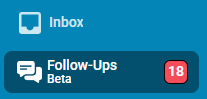
If you have access to it, you will see Follow-Ups on the left sidebar when you are logged in to the Portal. This is where you access existing conversations, and where you will see notifications that require your attention.
How Auto Follow-Up Works
Auto Follow-Up uses the context from an existing note in the Inbox to generate the questions to ask during the conversation.
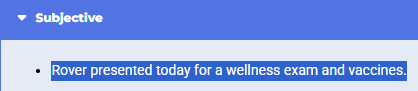
Let's look at an example Follow-up based on a simple note having this subjective:
You provide the patient's name, and the client's name and phone number.

There is a general outline on which it will generate specific questions to ask about the patient's progress and symptoms.
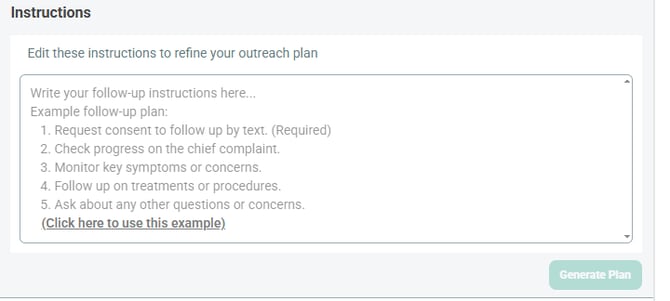
You can use it as is or edit it to your needs - Click Click here to use this example to start editing, and when you're happy with it, press Generate Plan. This will display the questions that will be sent. If you're unhappy with any of them, you can click Edit Plan to change it.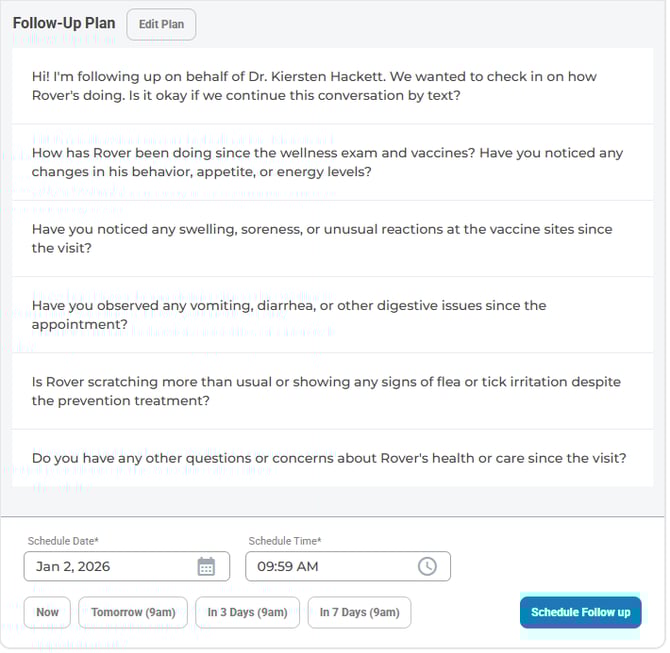
You can send it immediately or schedule the text message for anytime in the future using either the quick buttons, or the date and time fields. All times shown will be local to you.
Once the follow-up begins, the client will receive a message and based on their reply, it will either continue through the plan, or if something is wrong it will notify you immediately.
You can see the progress of the conversation in the same place where you start it at the bottom of the note
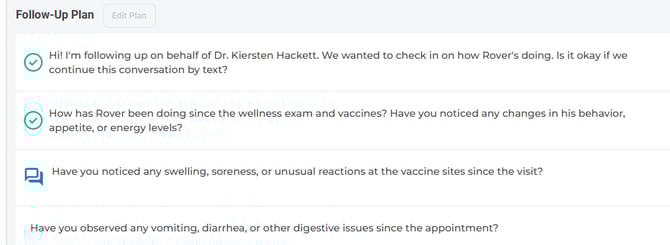
 Means that the client has replied to this message.
 Means this message has been sent but not yet replied to.
To view the client's responses, click the View Conversation button.
Note that the View Conversation button will not be visible until after the first message has been sent to the client. If you scheduled the Auto Follow-Up for now, it should be visible within a minute or so.
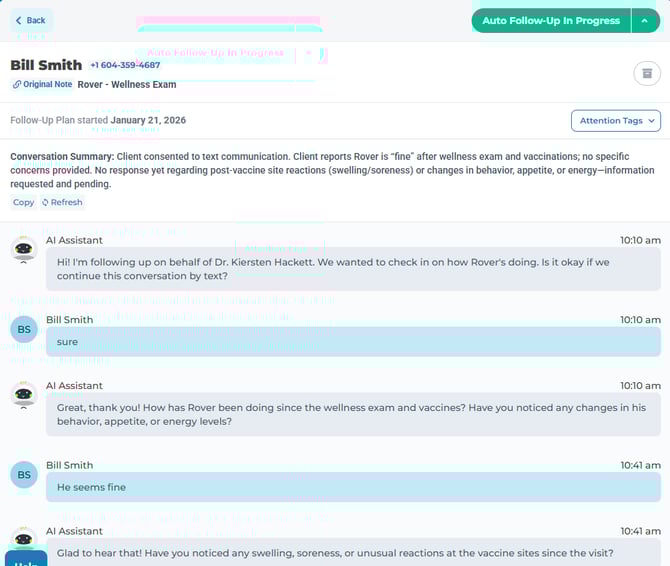
There is a link to the Original Note at the top.
There is a Conversation Summary at the top, which you can copy to include in your PMS. It updates itself after a reply, or you can press refresh immediately.
Take over the Conversation
You can take over the conversation at any time by replying on this page. This will pause the follow-up sequence, preventing any more automatic replies unless you Resume. 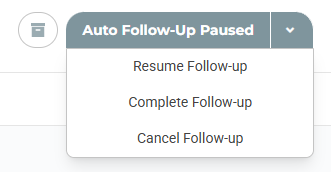
Statuses
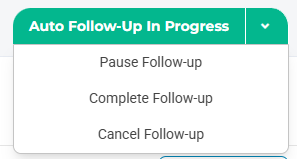
There are several statuses of a Follow-Up that allows you to manage the conversation, via the dropdown on the top right.
In Progress: The Auto Follow-Up is carrying on the conversation on its own.
Paused: Can be set manually in the dropdown, unchecking the Auto Reply button on the bottom left, or by replying in the conversation thread.
Completed: The conversation has completed
Canceled: Stops the conversation from proceeding with no option to resume.
Tags
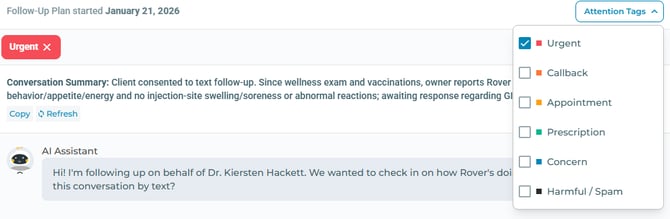
There are a number of tags that can be set on a conversation that will inform the Notification system.
Based on the conversation, the AI assistant will tag conversations that require your attention.
They can also be set manually with the dropdown on the top right.
When set, you will see it listed at the top of the conversation. They can be removed by clicking the x on the right side of the box.
Notifications
Notifications are currently only available in the Portal, and show up as a red box on the Auto Follow-Up button on the left side of the Portal. 
Any tag set on a note will cause the note to be listed under the Needs Attention section in the follow-ups tab. 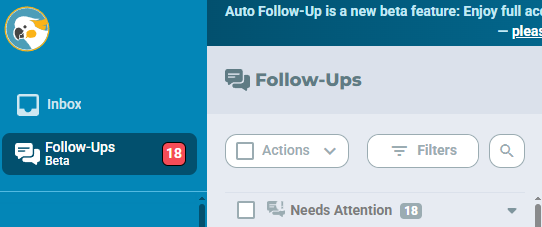
Similar to the Note Inbox, you can use the Filters button and the search bar to only show certain notes or statuses.
In the near future we will be adding mobile notifications to the mobile apps, but at present, the only place to see them is in the portal.
Mobile
Although Auto Follow-Up is not currently a feature built into the mobile app, you can still use it in a limited sense. We will be adding more robust mobile functionality very soon.
Open a (submitted) note, and click the Edit and More Actions button on the top right. This opens up the portal in your device's browser.
Scroll to the bottom and use the Auto Follow up as you would on the portal.
Phone Numbers
Unlike the Call Summary where you can verify your number, we are unable to use your clinic number or a number of your choice to send these messages.
Instead, we have a pool of numbers which will be used instead. That means that follow ups will use different numbers for each conversation.
We recognize that some of your customers may be reticent about receiving the message from unrecognized numbers. To help, this is why you can and should include your [doctor's] name, and the name of the patient. We are also looking to add the clinic name in the near future.
Credits
We recently introduced Credits for a couple of premium features. Learn more about Credits.
For Auto Follow-up, all users using this feature will consume credits.
Each message sent will use 1 credit (which is worth $0.09). This includes both automated messages and manually sent messages.